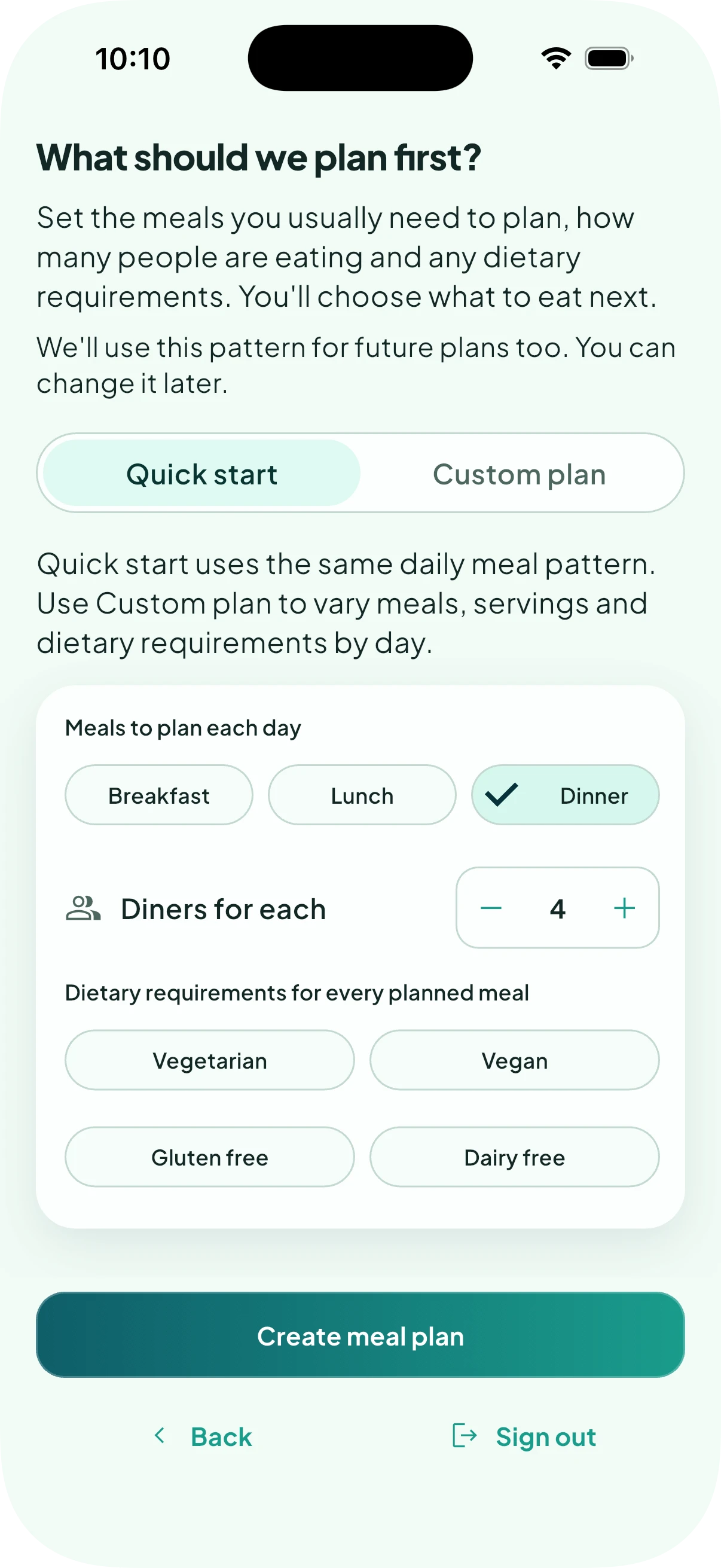
This prepares your meal planner. You’ll choose what to eat afterwards.
You get 14 days of free access from the end of setup. Your plan is saved while you use Silflay as a guest. Create a free account from Settings to keep access if you change phones and to use Silflay on another device. You’ll also need to register or sign in before subscribing or restoring a subscription. Creating an account keeps your plan and the original free-access dates.
If you already have a Silflay account, choose Already have an account? Sign in on the welcome screen. Signing in to an existing account replaces any guest plan after confirmation.
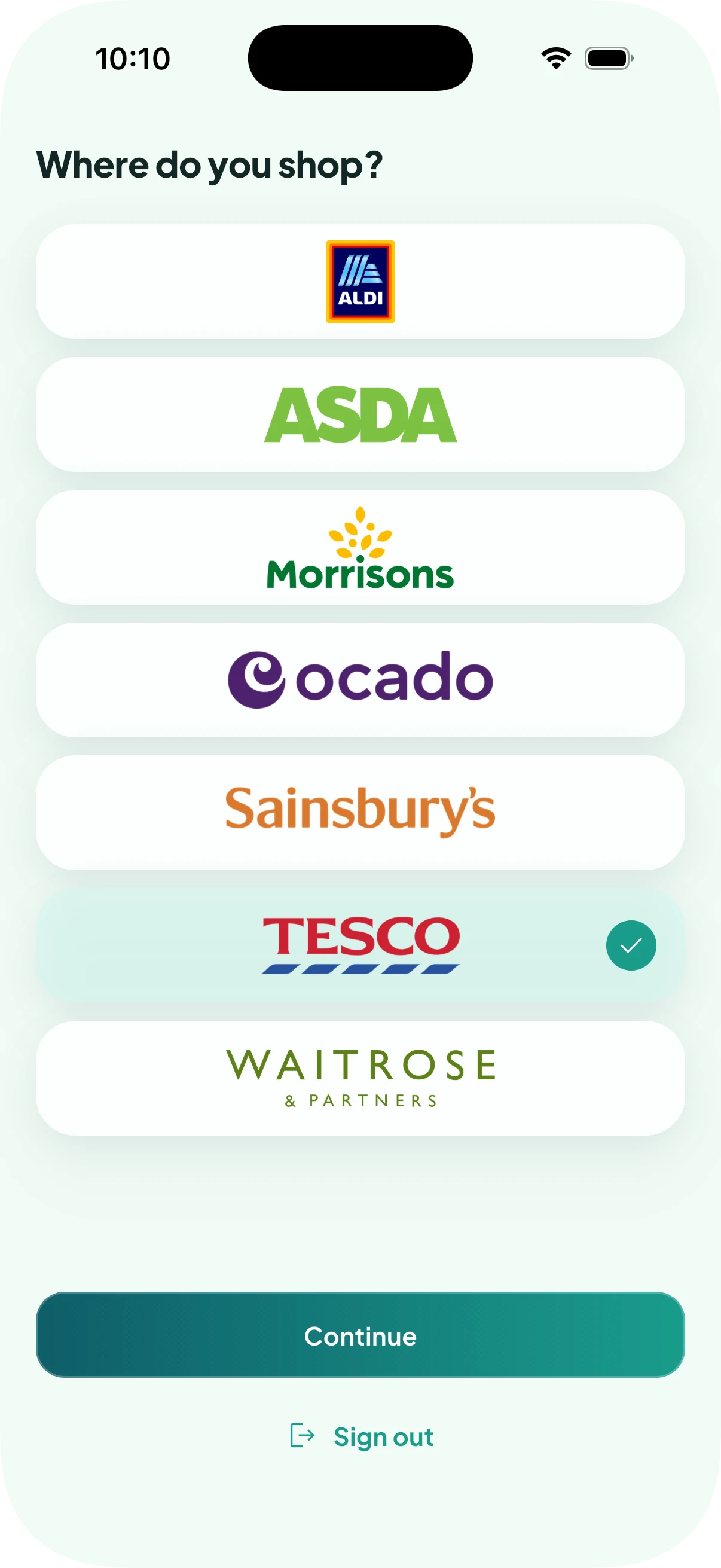
Choose where you shop
Select the supermarket that you want to use Silflay with, then tap Continue.
With every supermarket except Aldi, you can connect your account and sync your Silflay shop straight to the supermarket basket, ready to review and check out.
You don’t have to connect an account, though. You can use all of Silflay’s other features in exactly the same way and finish your shop with an interactive in-store checklist instead.
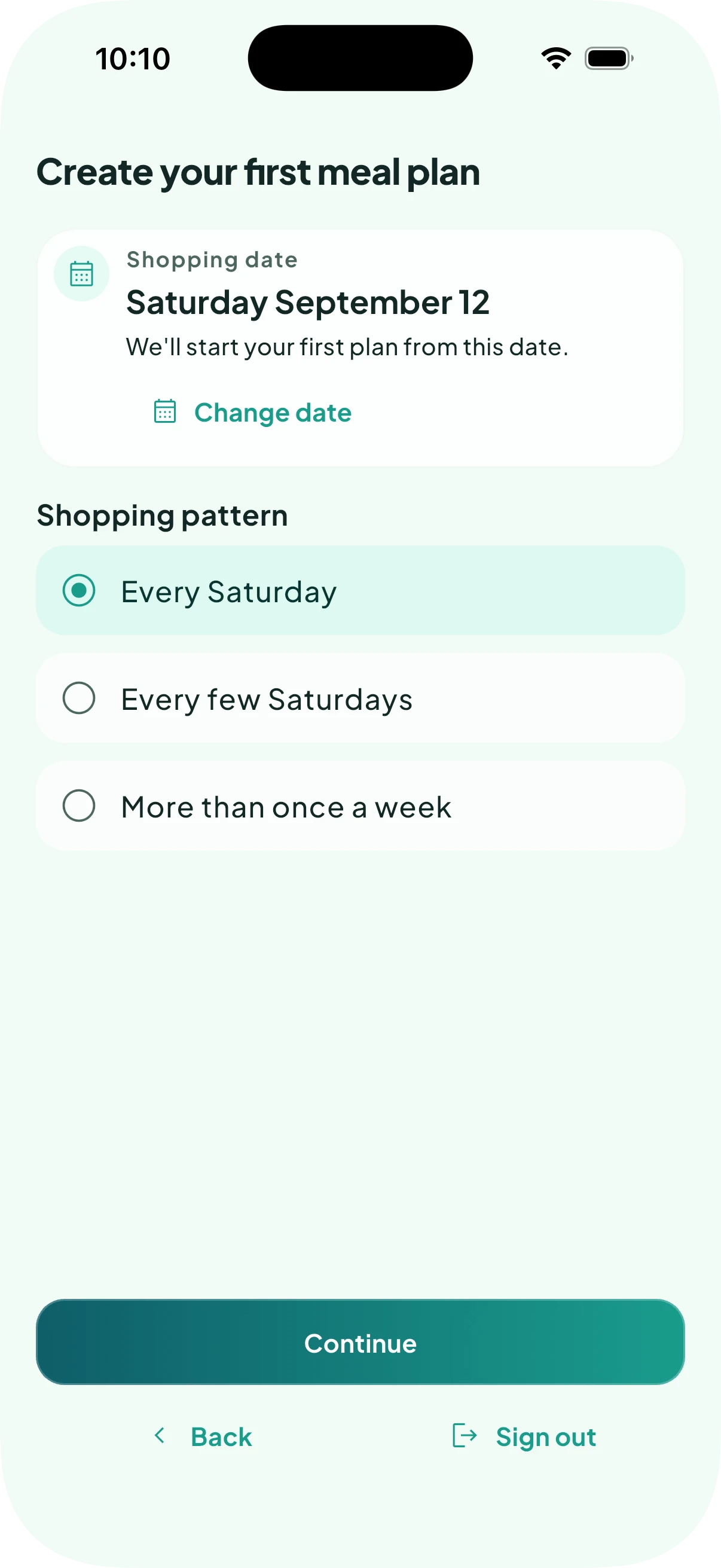
Set your shopping days
Choose how often you shop and your usual day(s). Then set the date of the first shop or delivery that you want to plan around.
Silflay uses these dates to work out which meals need to be covered by each shop.
Choose which meals to plan each day
Quick start gives you a regular meal plan with just a few taps. Choose the meals you need to plan, then set how many people they are for and any dietary requirements. Silflay uses that pattern for each day between shops.
Choose Custom plan when you want complete control. You can decide exactly which meals to plan on each day, who each meal is for and which dietary requirements apply.
Whichever you choose, you are not setting anything in stone. You can change your usual plan later, and add or remove individual meals to a particular plan whenever you need to.
These are spaces in your plan, not recipes you have to choose now. When setup is complete, you can start filling them in from Plan.